How-to
How to scan multiple photos at once on a flatbed
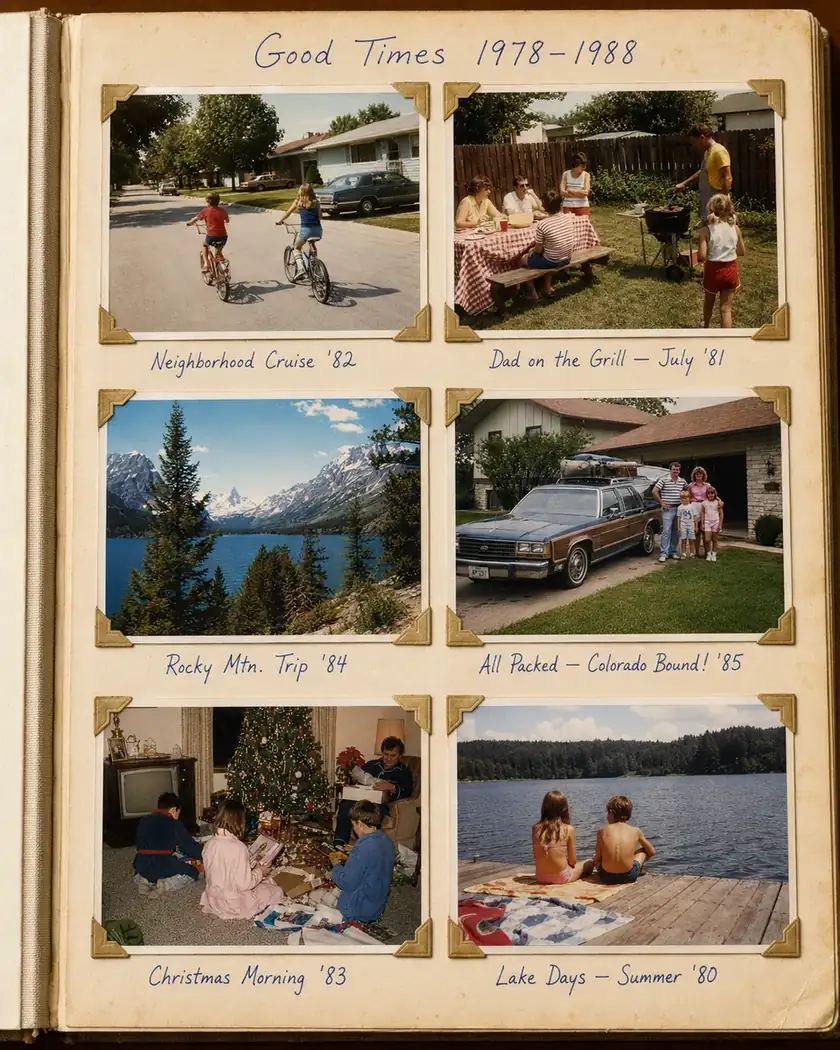
A flatbed can capture five or six prints in a single pass. Scanning them in batches — then splitting the scan into separate photos — is the fastest way through a big collection. Here's how to do it well.
The steps
-
Clean the glass and the prints
Wipe the scanner glass and dust each print with a soft, lint-free cloth or compressed air. A speck on the glass shows up in every photo on the sheet.
-
Lay them out with small gaps
Place several prints on the glass with a little space between them, and keep each roughly square to the scanner's edges. The gaps make each photo easy to separate cleanly afterward; rough alignment keeps straightening to a nudge.
-
Set DPI and color
Use 600 DPI or higher for standard prints — go higher for small photos or anything you'll print large. Scan in color even for black-and-white prints; color mode keeps the subtle tones that grayscale discards. Save as TIFF or high-quality JPEG.
-
Scan the whole sheet at once
Scan a single image of the entire glass rather than previewing and cropping each print in the scanner software. You'll do the separating in one place, faster, in the next step.
-
Split into separate, straightened photos
Box each photo out of the batch scan as its own file, straighten any that went down at an angle, and export them all at once. This is exactly what CapCrop's batch crop does — and where the time savings actually land.
Why not let the scanner auto-detect photos? Many scanners offer a "multi-photo" mode, but it tends to mis-split prints with light or busy edges, rotate them oddly, and give you no control. Scanning one clean image and separating it yourself is more reliable — and lets you label as you crop.
Scanning negatives instead?
Negatives and slides are transparent, so they need backlighting and an inversion step rather than a normal reflective scan. See how to scan color negatives on a flatbed.
Turn one scan into clean, separate photos.
CapCrop boxes each photo out of a batch scan, straightens it, labels it, and exports the lot. Opening a private beta soon.
No spam — one note when the beta opens, nothing more unless you tick the box.